

It’s early June 2025, we are preparing our C2 infrastructure and payload for an upcoming red team engagement. We know the client, we also know some aspects of their infrastructure because we do a lot of regular pentests for them throughout the year. We don’t need to worry about the social engineering part because it was agreed to do the tests in an “assume breach” scenario and we’ll thus have a contact on site who will download, open or execute whatever we ask them to. So, the objective is simple, we have approximately 2 months to get an initial foothold on the network and do some post-exploitation.
We can’t say that we felt highly confident, but we had a comfortable margin for error, and we knew that we could go back to the drawing board in case something did not work as intended. Little did we know that we had greatly underestimated the difficulty of the task, and that a key part of their infrastructure would end up completely ruining our plans. We were not quite prepared for what lied ahead of us.
Initial Preparation and Testing
Despite the “assume breach” conditions and our partial knowledge of the target infrastructure, we did not know for sure whether our attack vector for the initial access would work. So, we kept things relatively simple and opted for the scenario described below.
Because the social engineering aspect was not a concern, it involved several actions on the user’s end. We hosted the dropper on one of our fake websites which has a high reputation and is properly categorised to pass common corporate proxy restrictions. This dropper consisted of a 7z archive containing a well-known signed executable and a couple of DLLs, that the target user was supposed to download with their web browser through HTML smuggling. With the archive extracted locally, the user would have to open the signed executable (thus bypassing the Mark-of-the-Web), which would then trigger a DLL hijacking and copy a DLL containing the actual payload to the current user’s AppData folder so that it would be loaded by Microsoft Teams the next time it starts.
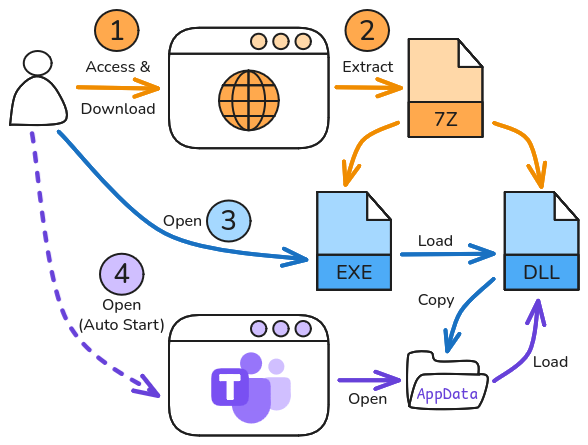
This scenario involves at least three actions on the target user’s end, the fourth one being optional as the payload DLL would be loaded by Microsoft Teams when opening a Windows session. Nonetheless, it’s still a bit convoluted, but we’ve seen worse in real-life attacks. Finally, the payload itself consisted of a custom implant that was supposed to connect back to our C2 server over HTTPS and provide us with tunnelling capabilities, along with a couple of basic commands, so that we could extract local user credentials and run our tools remotely. Nothing too fancy.
At this point, everything is ready. We’ve tested the whole chain several times in our lab, which replicates most of the security protections we’re aware of. Everything passes EDR scrutiny: the downloading of the archive, its extraction, the DLL hijacking, and the final payload execution. The implant is able to detect the proxy configuration and handle transparent authentication using the current user’s credentials. Finally, the few embedded commands and the tunnelling work as expected.
And then comes D-day. A meeting is scheduled with the client and a contact on site to roll out the attack scenario. We guide them through the steps. We observe the downloading of the archive on our server. They extract it locally and run the executable. Nothing happens, at least on the surface, but our payload DLL was silently dropped to its target folder. They restart Teams to trigger the execution, it hangs for a few seconds, and then,… it shuts down. On our end, we can see the first packet of an initial connection attempt, and then nothing, the session fails to establish. What’s going on?
No Problems, Only Solutions
The fact that Teams exited almost immediately meant that our payload caused a crash or could not initialise correctly. Either way, we had no clue about the root cause at this point. The payload could have just been blocked by the EDR, but there was no clear sign that this was the case. Besides, we saw that it briefly connected to our server.
So, we ended the call and then reviewed the whole initial access chain again to identify any shortcoming we could have missed. Unfortunately, nothing stood out, so we decided to add a ton of debug to our implant, repacked everything, and scheduled another test session with the client. The updated version of the implant generated a log file locally that we could analyse, but it didn’t help that much. It just confirmed that it failed to establish a session, as we observed initially.
This is only a summary of what really happened. In reality, we went down a few rabbit holes and had to go back and forth with the client for a few days. Yet, they weren’t upset at all, despite our obvious struggling. Quite the contrary, they were very cooperative and eventually helped us brainstorm. That’s where they gave us a key piece of information that turned our initial plan completely upside-down.
From the start, we made the reasonable assumption that direct outbound Internet connections were blocked by default and that web traffic had to go through a web proxy with a relatively strict filtering and TLS interception. This has been the de facto standard in large corporate environments for years.
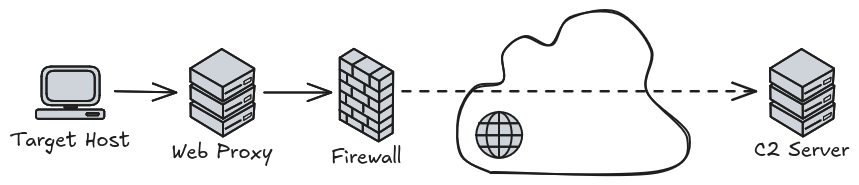
Although our contacts did not know all the specifics, they knew that their infrastructure extended this model with an additional security layer. Instead of relying on a single traditional web proxy, there was a second web proxy of a particular type, which was meant to support virtual browsing!
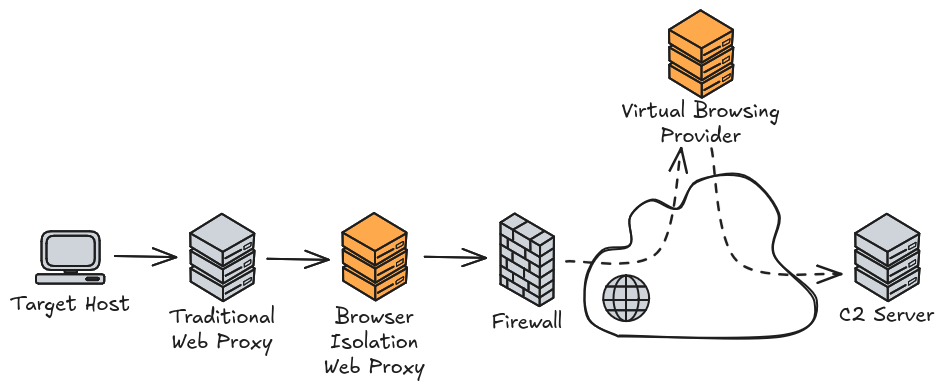
Before that, we had encountered this type of solution only once in another client’s infrastructure. The product wasn’t the same but the overall concept is identical. The idea is simple and very effective. Assuming that web content is malicious by default, instead of loading it directly in the end user’s web browser, you load it in a virtual web browser inside a container, and ideally on a separate infrastructure. What is returned to the end user’s web browser is an HTML document generated on the fly which acts as a sort of “screenshot” of the actual web page, with all the active content being interpreted by the virtual web browser.
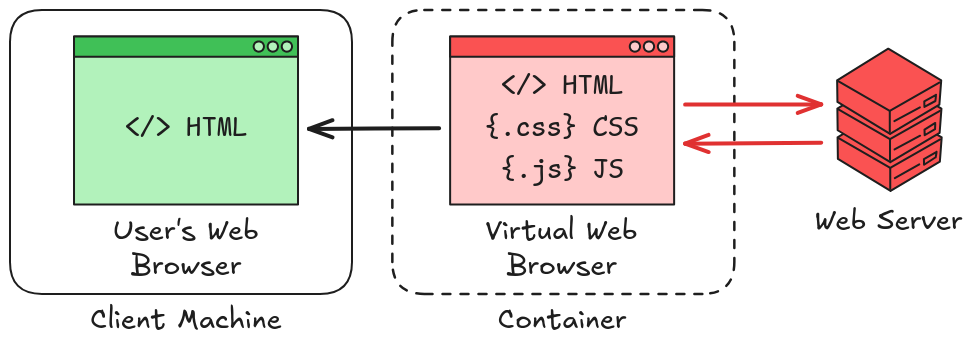
In practice, it’s way more complicated because you still want your users to be able to interact with forms on certain websites, for instance. Most of those forms won’t work if JavaScript is removed. However, it is possible to configure fine-grained rules to allow certain features. From our standpoint, it meant that our implant, as initially designed, had no way of getting through this protection.
We considered different ways to bypass this filtering, such as embedding a headless browser so that we could interpret the web content returned by the virtual browsing solution. Sending data from the implant to the server wasn’t an issue, but to retrieve data from the C2 server, we would have to smuggle it through static HTML tags for example. In theory, this should work, but it would have been too specific to this particular solution, so we abandoned this idea.
In case you’re wondering, we did consider various side channels, but outbound network filtering was very tight. DNS was the only protocol that could have been allowed through, but we knew that it was already heavily monitored, so it was not an option.
However, there was another potential solution right in front of your eyes.
Teams as a C2 Channel?
MS Teams and its competing solutions have become prevalent in organisations over the past few years, to the point where they’ve even replaced legacy telephony systems in many places. From a security standpoint, this comes at the cost of providing a large attack surface and poking holes in existing security layers, as we’ll see shortly.
Our initial assumption was as follows. Virtual browsing is all well and good for unknown websites, but it has its limits, especially when it comes to complex applications like MS Teams. Therefore, administrators must configure exceptions, typically based on domain names, so that this web traffic doesn’t go through the second level web proxy. Little did we know, at this stage, that it was even worse than that.
We knew that it was possible to join external Teams meetings from the client’s network since this was the method we used to communicate with them. Nothing surprising here. One way of easily exchanging data bidirectionally with the outside world is through a meeting’s chat. There are some limitations, of course, such as the maximum size for a single message, but splitting data into chunks and encoding them is a challenge that is not too hard to overcome. On top of that, our payload was executed within Teams, so it was a perfect fit.
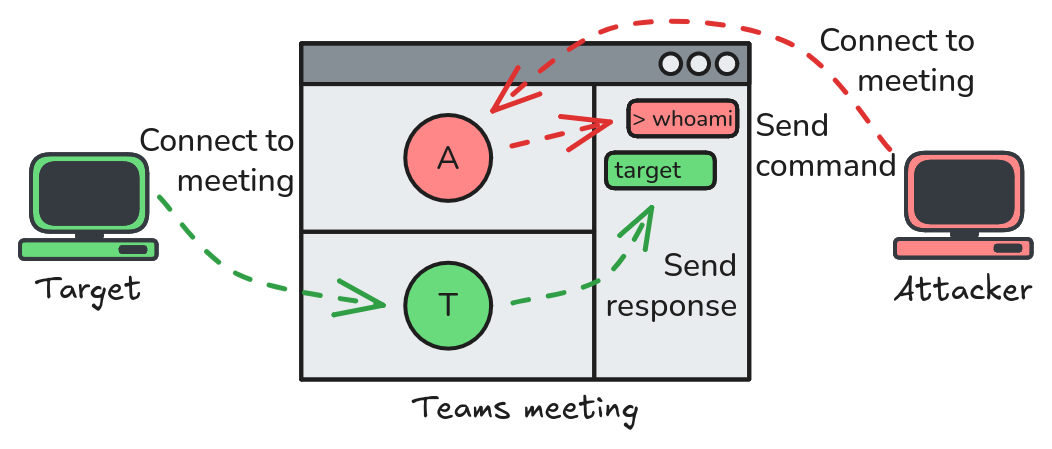
Therefore, our plan was to reverse engineer the HTTP traffic exchanged between the Teams web app and the Microsoft servers, and build a lightweight client that replicates the requests necessary to join a meeting and send / receive chat messages. Then, we would have to integrate that into our original implant so that it would use this channel to receive commands, execute them, and send the result back.
We shared this idea with the client, and informed them that it would certainly take us a couple of weeks to do that. They were pleased with the proposition and gave us the go-ahead. Time to get to work!
At the moment, and as far as we observed, Teams uses two domain names for accessing the web application, teams.microsoft.com for organisations, and teams.live.com for individuals. For our tests, we used free Microsoft accounts to create the meeting so we were automatically redirected to the second one. From there, you can generate a “Share Link”.
https://teams.live.com/meet/MEETING_CODE?p=MEETING_SECRETWe could have used this link for our analysis, but we were unsure this domain would be allowed on the client’s proxy, so we tried to replace it with teams.microsoft.com.
https://teams.microsoft.com/meet/MEETING_CODE?p=MEETING_SECRETAnd it worked. Instead of asking you to log in with a Microsoft account, the application allows you to access the meeting as a Guest.
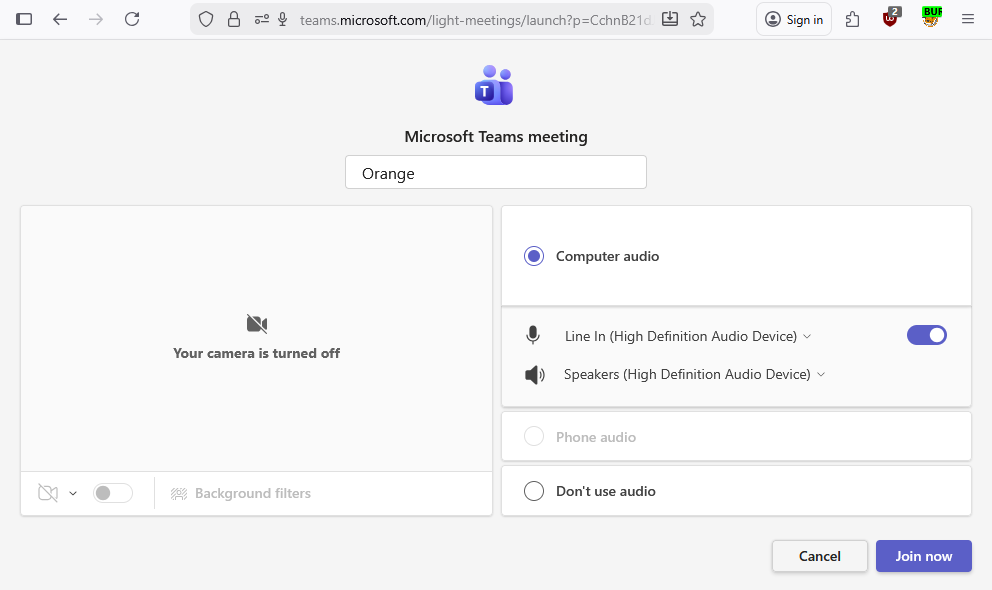
We then hooked up Burp Suite to our web browser to capture the HTTP traffic while joining the meeting to analyse the traffic.
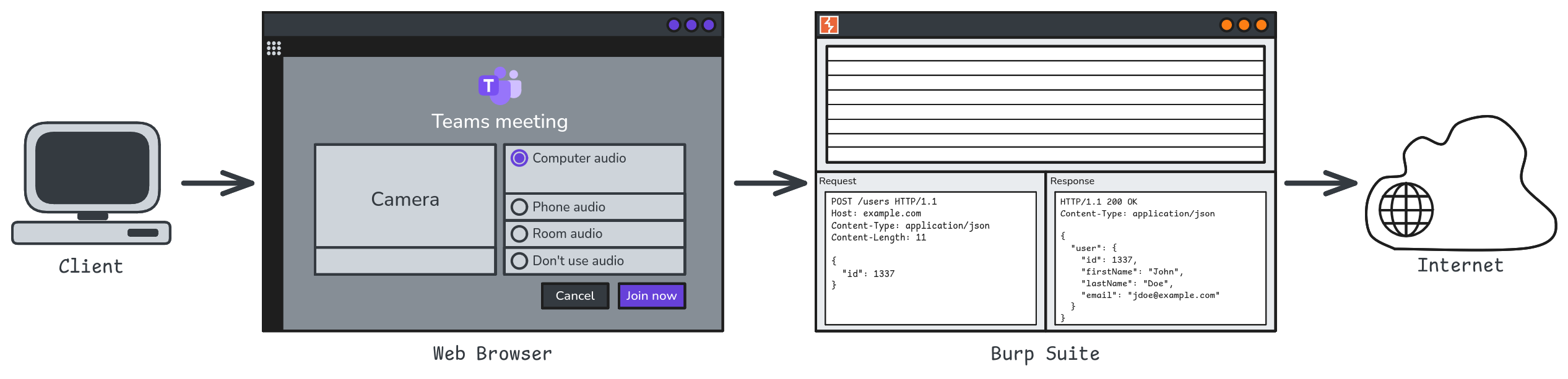
From the moment we opened the link in the browser to the moment we were accepted in the meeting after clicking the “Join” button, we observed a couple of hundreds of HTTP requests, as well as websocket messages, across a dozen region-based domain names. It was not going to be easy!
teams.microsoft.comlogin.microsoftonline.comeu-ic3.events.data.microsoft.comapi.flightproxy.skype.comapi-emea.flightproxy.teams.microsoft.compub-ent-sece-05-t.trouter.teams.microsoft.comgo-eu.trouter.teams.microsoft.comconfig.teams.microsoft.comteams.events.data.microsoft.compub-ent-plce-14-t.trouter.teams.microsoft.comdf-ent-euno-a-t.trouter-df.teams.microsoft.comemea.pptservicescast.officeapps.live.compub-csm-dewc-02-t.trouter.skype.comemea.pptservicescast.officeapps.live.com
Though, with a quick glance, we could already see that some of this traffic was perhaps not necessary. Typically, requests sent to teams.events.data.microsoft.com seemed to only contain binary-formatted telemetry data. To solve this problem and distinguish relevant requests from irrelevant ones, we made good use of the Reshaper extension. It enabled us to block domain names or particular requests in an iterative process, until we were able to identify the few API requests that were strictly necessary for joining the meeting.
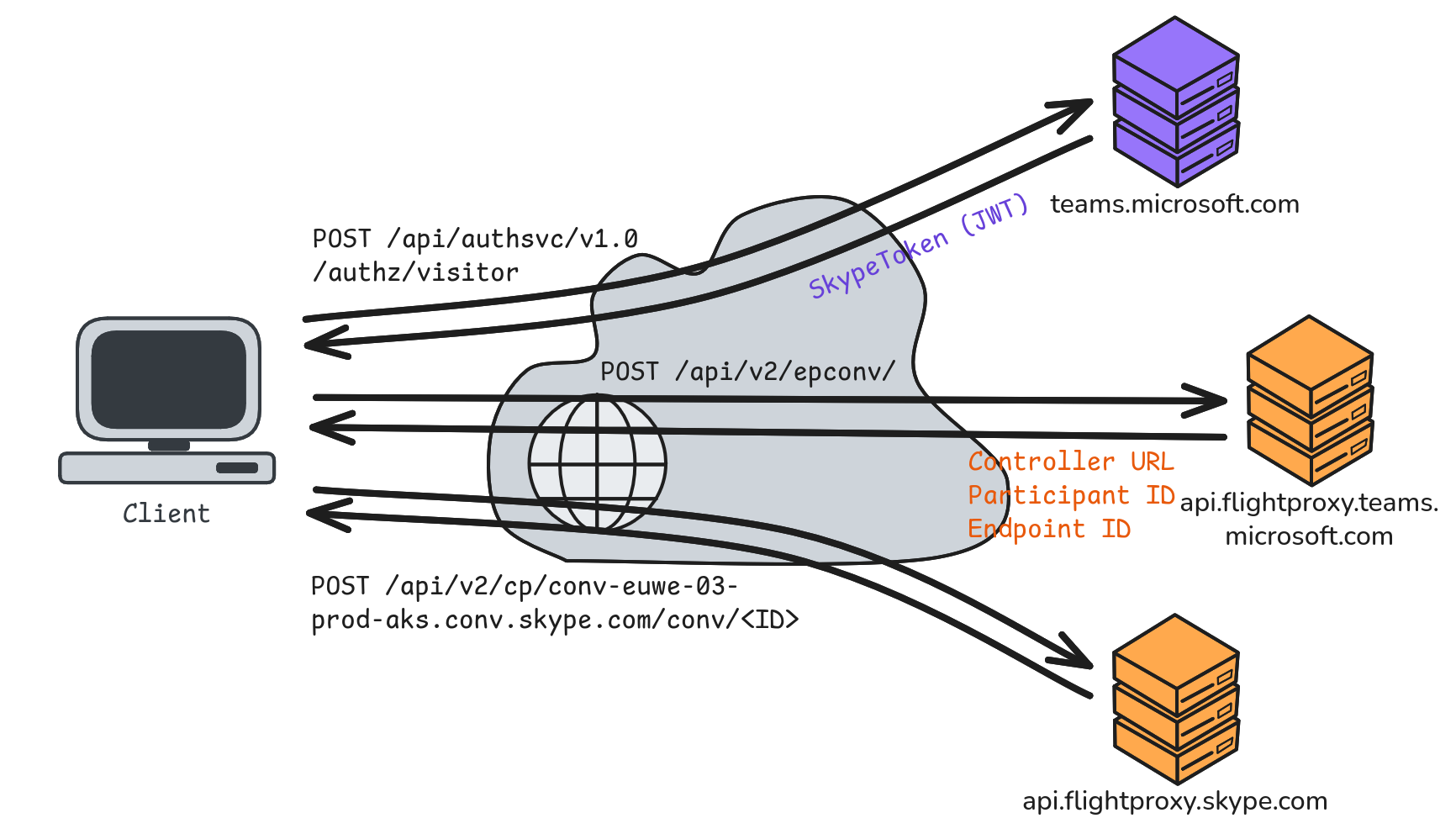
First, the client sends a POST request with an empty body to /api/authsvc/v1.0/authz/visitor. In return, the API provides a skypeToken in the form of a JWT, along with a bunch of URL endpoints for various services. The “Skype Token” is required to authenticate the user in subsequent “Flight Proxy” API requests. The next request is sent to /api/v2/epconv/. It contains some information about the meeting, including its ID and pass code. The server then returns a lot of metadata, including the unique URL of the “conversation controller”. Finally, the client must send a request to this controller and include its endpoint ID and participant ID which it got from the previous API response.
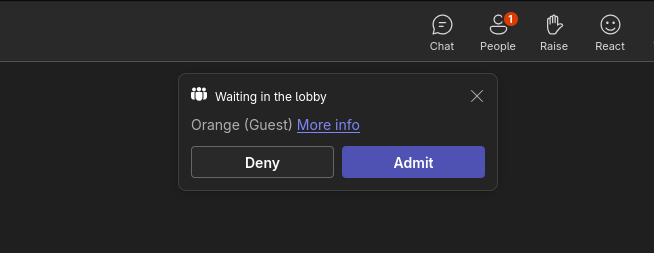
At this stage, we did not fully understand the content of each request, but we had already figured out a few key pieces of the puzzle, so we started working on a proof-of-concept, and we hardcoded all the information that we deemed irrelevant. After a few adjustments, we were able to fully replicate the exchange and get the expected responses from the APIs, and… nothing, no guest acceptance notification message (like the one below) appeared on the meeting organiser’s end.
One more week had passed, and it seemed like we had barely made any progress. Until we realised that we had made a huge oversight!
Open House for Teams
In hindsight, it was a silly mistake, but you’re always smarter afterwards, as they say. Anyways, we are here to share the whole experience, not just the shiny stuff. So let’s dive in.
Teams is an application used for audio and video communications over the Internet. Big news, I know. But our good old Hypertext Transfer Protocol works over TCP, so it’s not suited for this kind of real-time traffic (although it is less true nowadays with HTTP/3). The point is that there are probably other protocols involved.
So, to get the bigger picture, we used Wireshark to capture all the network traffic from our host, and made a significant discovery. As soon as you click the “Join” button, and before even being accepted in the meeting, there is a lot of UDP traffic exchanged with several servers using protocols such as STUN and RTCP on port 3478 (more on that later).
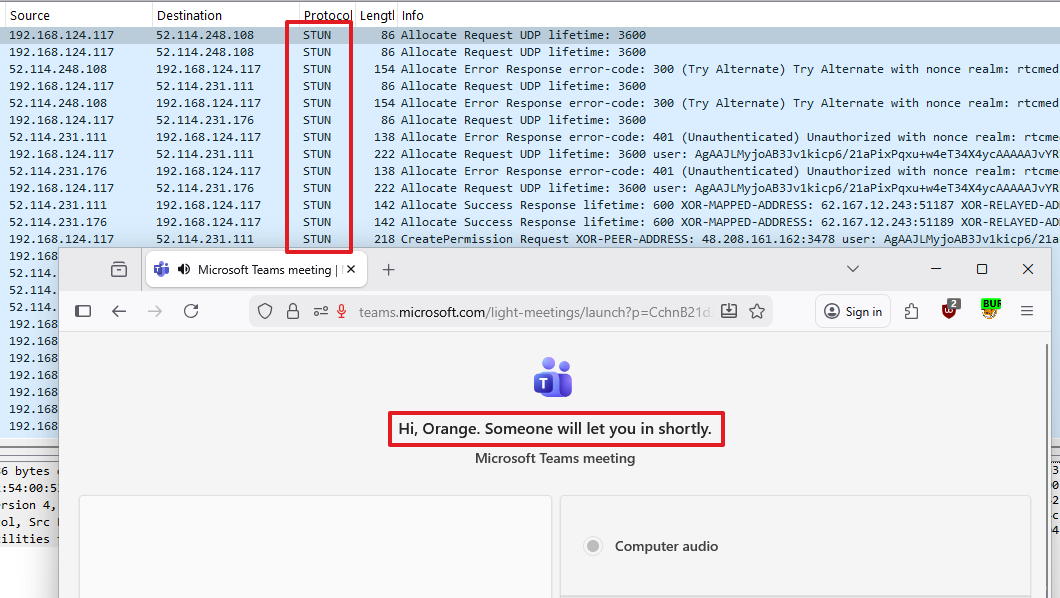
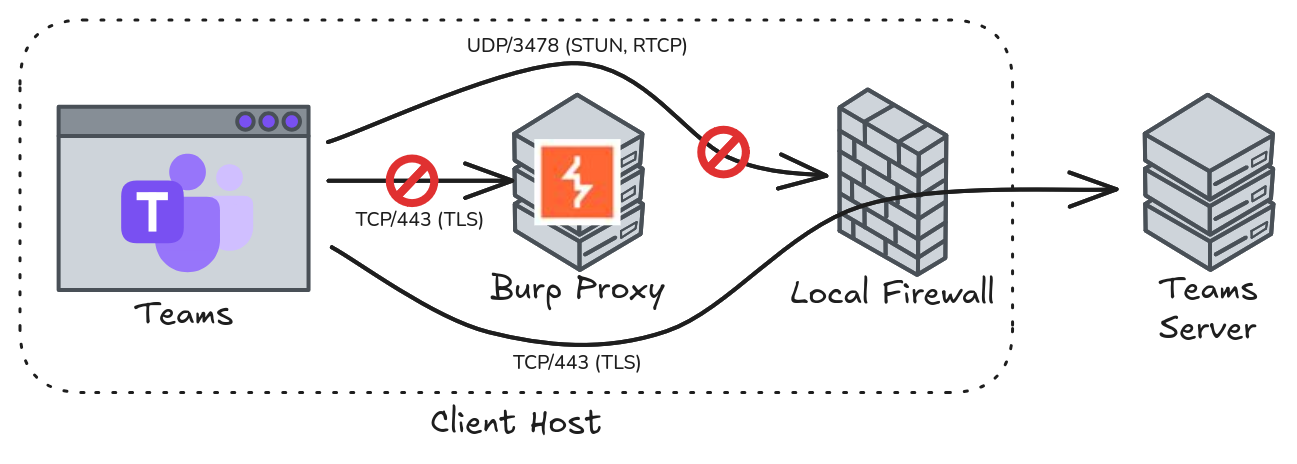
We blocked this outbound UDP traffic and found out that Teams was no longer able to join the meeting. Then, we removed our Burp proxy from the equation and observed that the Teams client was able to join the meeting again. In Wireshark, we could see a lot of TLS encrypted traffic over TCP port 443.
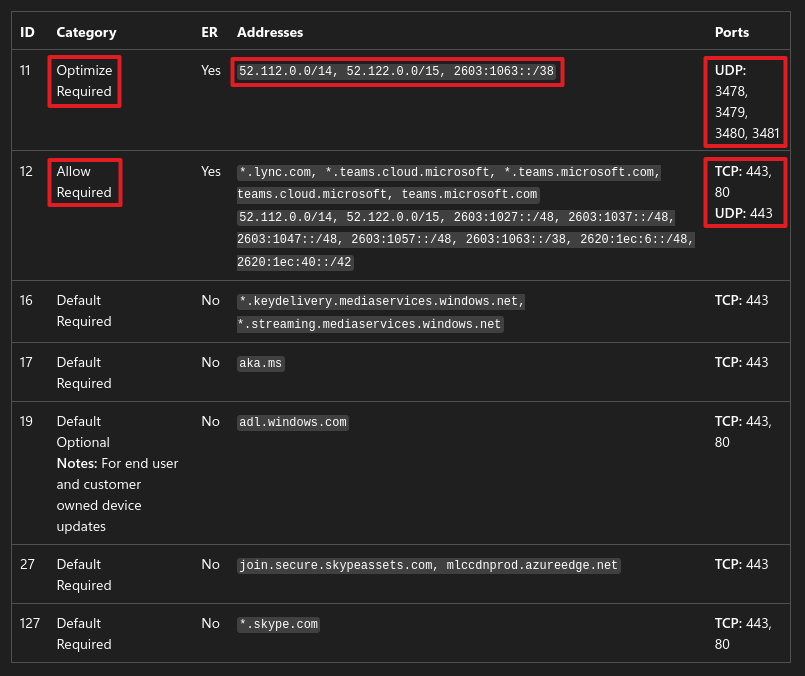
It turns out Teams’ architecture and network flows are fairly well documented. But the best part, from an offensive security perspective, is this document: Microsoft 365 URLs and IP address ranges. It provides a list of all the IP subnets, domain names, and TCP/UDP ports that must be allowed on the firewalls to allow Teams to function properly. Most notably, we learned that outbound TCP/UDP on port 443 is required, and that outbound UDP on ports 3478-3481 should be allowed for better performance.
And the “final nail in the coffin” came from the document Proxy servers for Microsoft Teams and Skype for Business: “We recommend that Teams traffic bypasses proxy server infrastructure, including SSL inspection“.
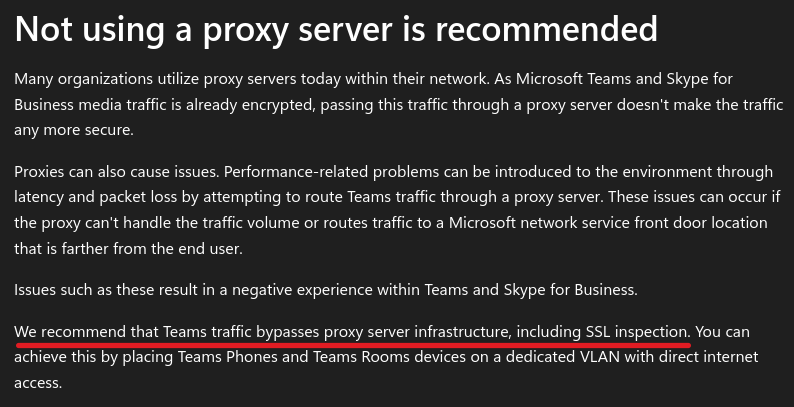
To recap, as long as Teams is used within an organisation, it means that many exceptions must be configured on the network to allow outbound traffic, and even bypass security equipment. Of course, it’s not completely wide open since the traffic is restricted to Microsoft owned subnets and domain names, but still, this creates a massive opportunity for outbound C2 traffic.
Audio/Video over the Internet
What we have learned so far is that interacting with the Teams web APIs is not enough to join a meeting. We must also handle some kind of UDP network flow before an organiser can get the notification to accept us. So, we made some research and discovered a whole new world: WebRTC. For people who know, this may sound silly, but we didn’t, so we had to learn.
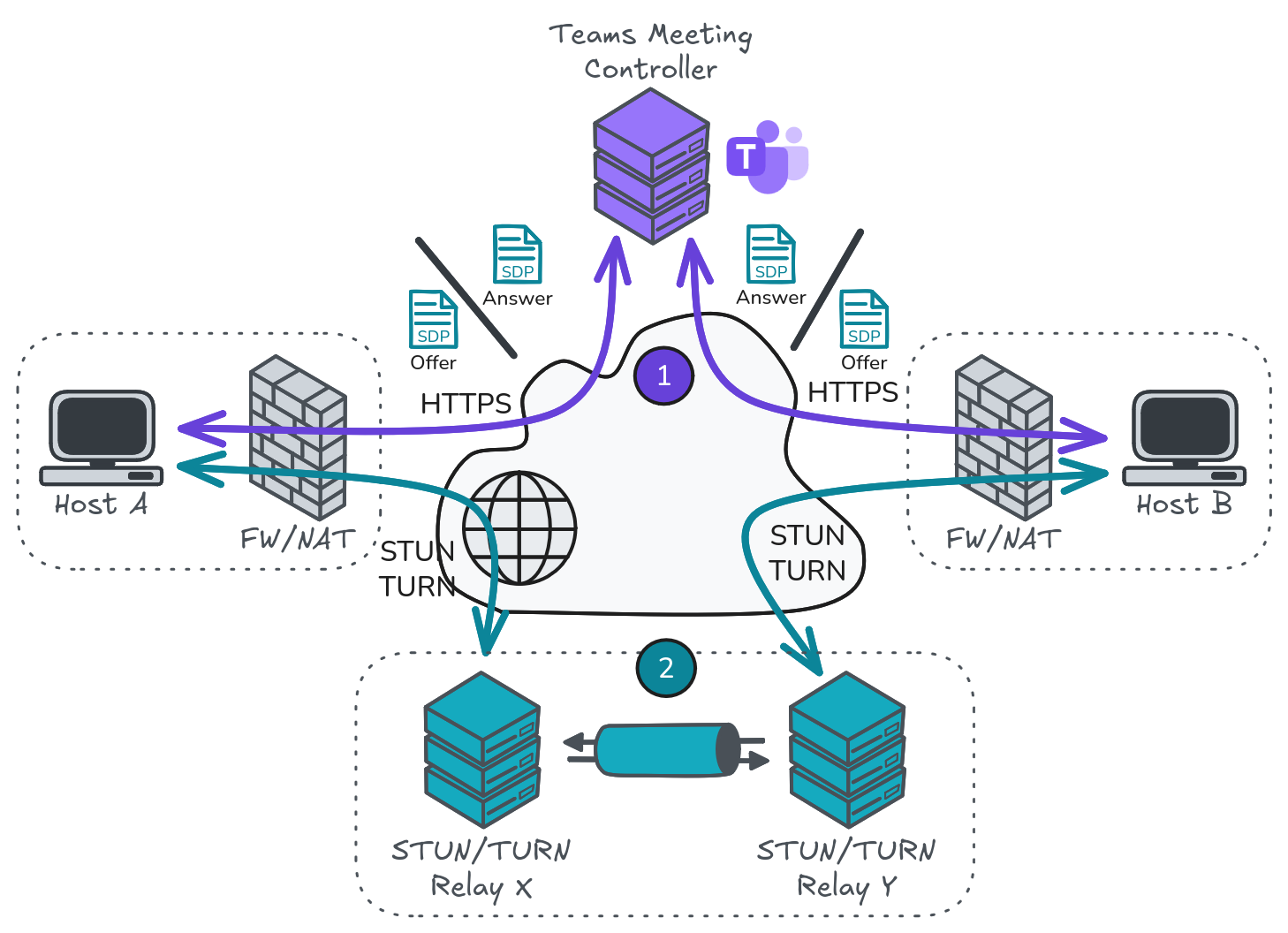
According to the Wikipedia page, WebRTC is a project that provides real-time communication (RTC) to web browsers (and mobile applications), and it leverages 3 protocols to do so: ICE, STUN, and TURN. Essentially, these protocols aim at initiating peer-to-peer communications between hosts over the Internet as directly as possible, even when there is Network Address Translation (NAT) involved.
In the context of Microsoft Teams, we found that it works as follows. When joining a meeting, a client first interacts with the Teams controller API as described earlier. However, we were missing a crucial aspect of the conversation controller request that we had not understood initially. This request must contain a valid Session Description Protocol (SDP) document which is used to negotiate audio and video streams. Without that, the controller will assume you’re not yet ready to join a call and the organiser will never receive a notification.
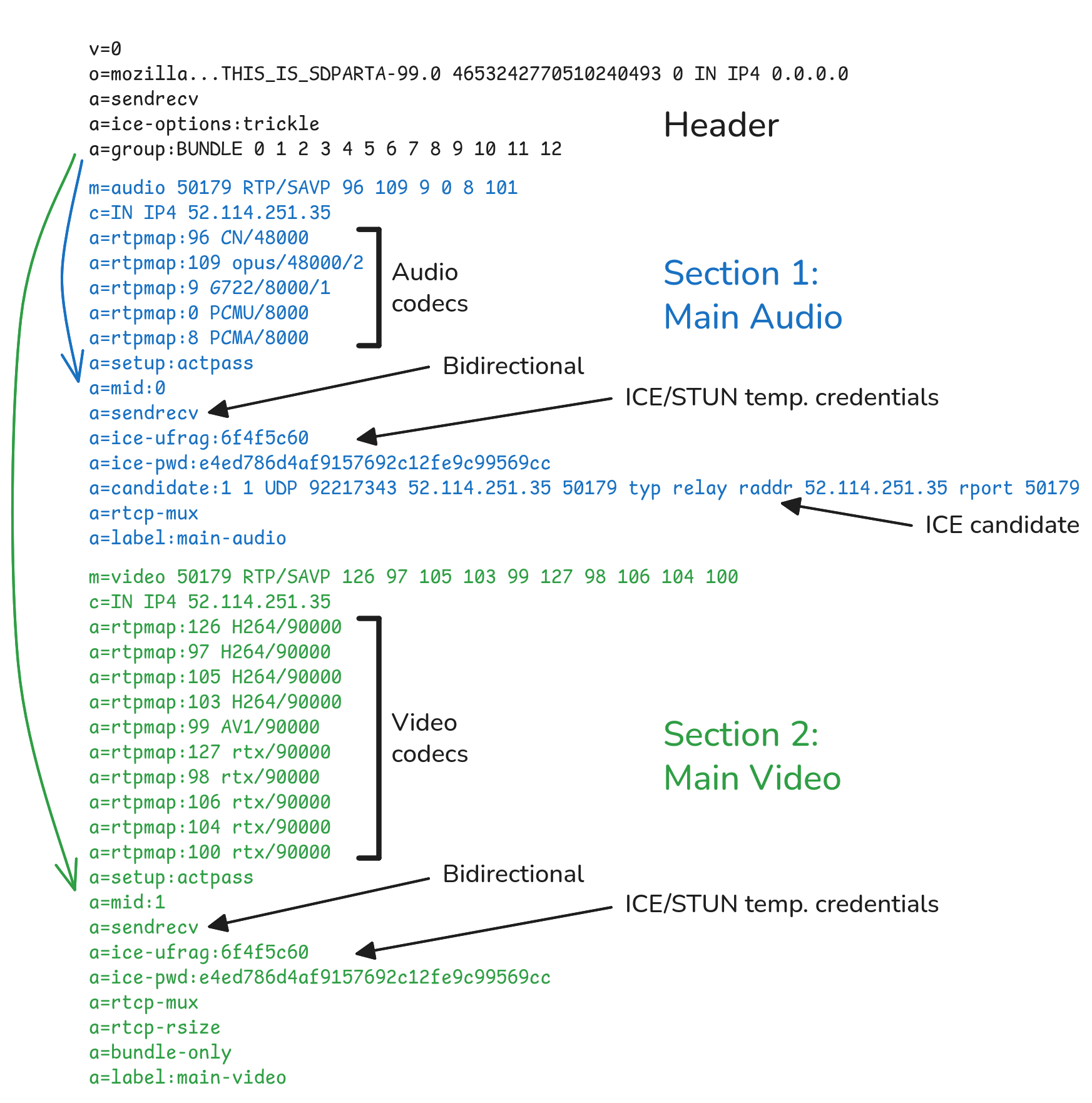
An SDP document is composed of a header and a list of sections describing audio / video codecs and session negotiation information. As a concrete example, below is a sample SDP offer generated by the Teams web application in Firefox. The header contains a group attribute with the list of media sections referenced by an ID from 0 to 12 here. This ID then appears in the mid attribute of each section. Only the first two sections are transcribed here. The first one is always used to negotiate a bidirectional audio channel. It is then followed by around ten sections used for negotiating video streams.
Once we understood these concepts, we proceeded to integrate this peer-to-peer communication in our proof-of-concept. We were writing our PoC in Go which has a WebRTC library named pion. We’ll spare you the details of the implementation as it’s relatively standard across languages. We created a “peer connection”, generated an SDP offer from it, sent it to the Teams controller, and… it didn’t work. The API returned an error message stating that the document was malformed. We naively assumed that, because SDP is a standard protocol, we would be able to connect to Teams simply by plugging in our own WebRTC client, but it wasn’t going to be that simple.
To investigate this new issue, we compared a document generated by Firefox with another generated by pion and started to notice a number of differences. So, we intercepted the HTTP requests sent by the browser and changed one SDP setting at a time to try and identify the differences that mattered the most. However, this process had strong limitations because a lot of the settings are interdependent or influence something in the stream negotiation at a later time.
Therefore, we dug further and found out that web browsers embed tools that are very useful for debugging WebRTC sessions:
chrome://webrtc-internals/chrome://media-internals/chrome://webrtc-logs/-
about:webrtc(Firefox)
The “WebRTC Internals” page of Chrome, in particular, offers a detailed insight into the inner workings of WebRTC, with a clear log of all the operations. As highlighted on the screenshot below, we can see that there is a button to extract the SDP document generated by the internal WebRTC component of Chrome.
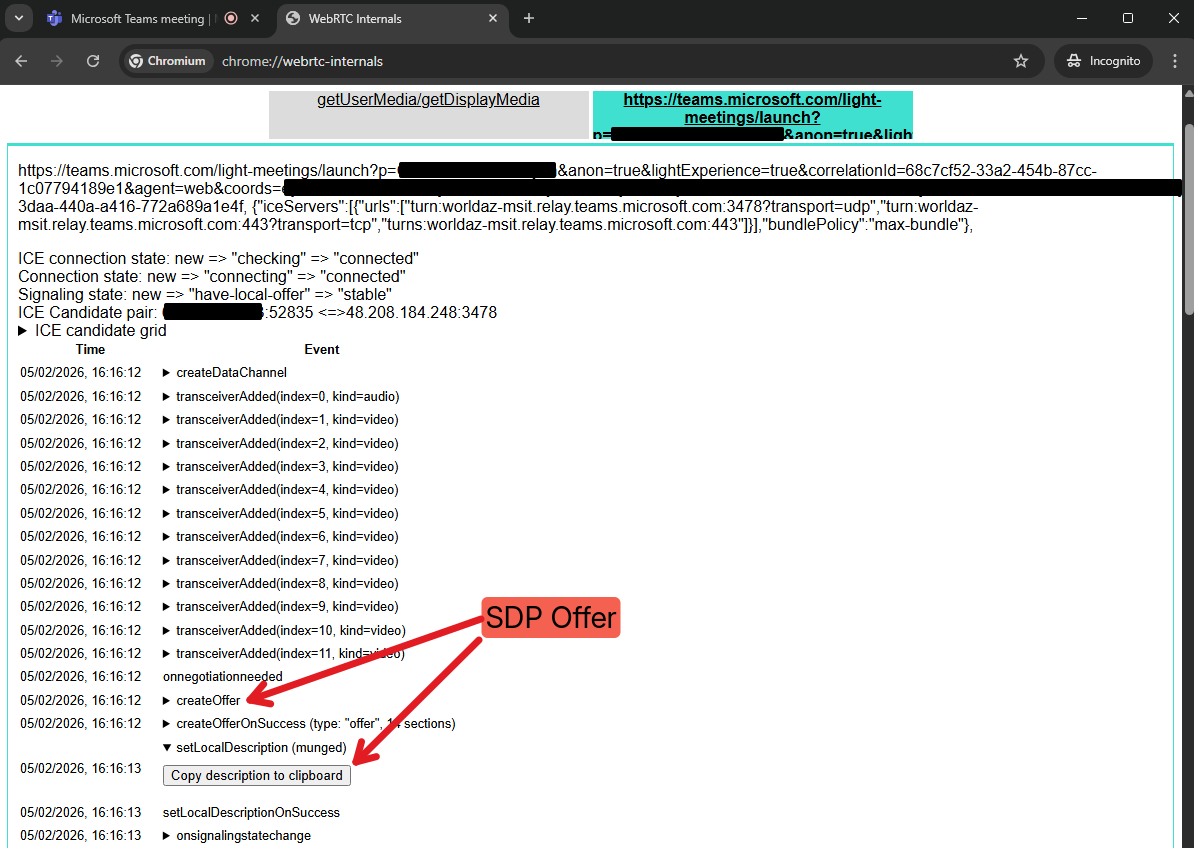
Below is an extract of the SDP offer, showing only the audio negotiation part. Already, we can see several notable differences between a document generated by WebRTC and what is actually sent by Teams. For instance, the standard protocol suite UDP/TLS/RTP/SAVPF is replaced by RATP/SAVP in the final document, and the dummy port 9 is replaced by an actual random UDP port number.
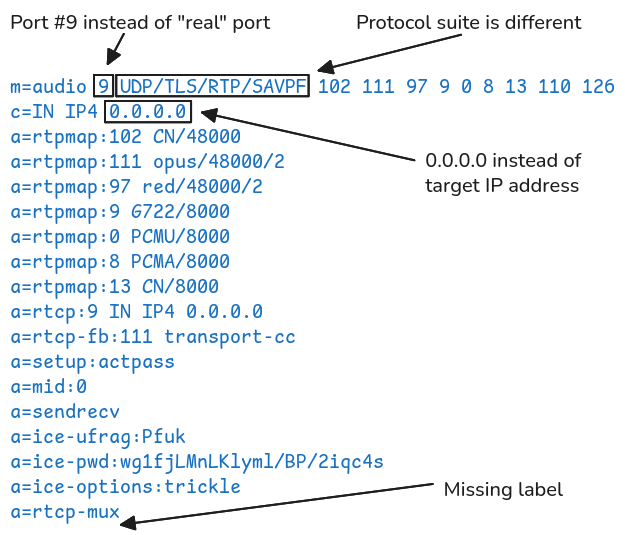
So, if the implementations of the pion library and Chrome generate similar documents, but Teams sends something different, it must do something shady in the background. Therefore, we dived into Teams’ client-side implementation and analysed its partially “minified” JavaScript code.
The final explanation came from a few code blocks such as the one highlighted below. In addition to references to /node_modules/sdp-transform/lib/grammar.js, we found some calls to sdpTransform.*(), which indicated that it uses the Node JS package sdp-transform to update SDP documents on the fly.
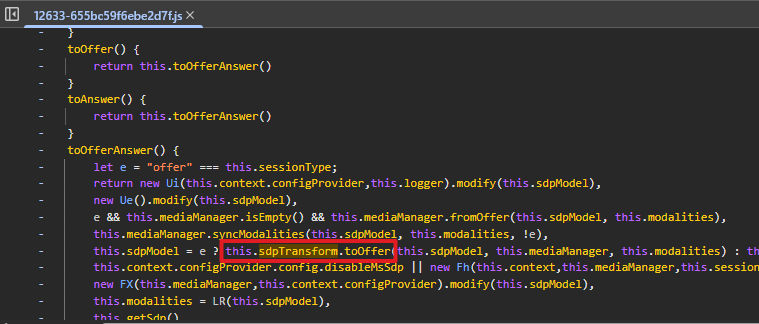
Following this discovery, we implemented our own SDP transformer in Go to apply similar changes to the SDP offers and answers. This worked, and we were able to join a meeting. Then, sending and receiving chat messages was just a matter of implementing the right HTTP API calls.
After all this work, we finally had a working proof-of-concept to join a meeting from the command line, and exchange messages in the chat. From there, we still had to implement a custom protocol to encode and decode our C2 traffic within the messages. At least, that was our initial plan, but this was before we made another very interesting discovery.
Teams as a C2 Channel, for Real this Time
In the previous section, we covered the audio and video aspects of WebRTC, but it actually offers a third type of communication: data channels. Data channels are used by Teams during remote control sessions to transfer mouse pointer information from one machine to another, for instance.
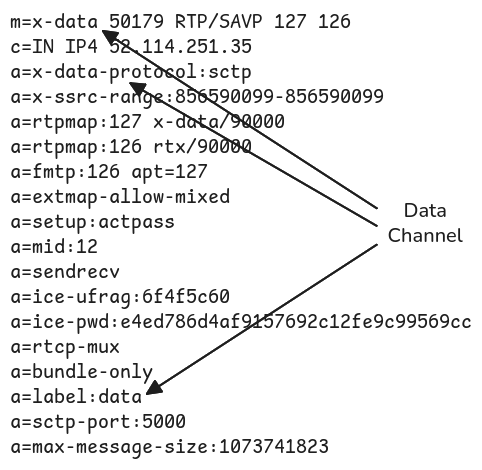
For a moment, we considered encapsulating our C2 protocol in an audio or video stream, but data channels offer a more appropriate way of doing that. A data channel is indeed ideal for transferring arbitrary data. Teams seems to always negotiate one such data channel when joining a meeting, whether it uses it or not, but it is reserved for internal use. We tried to attach another data channel to our WebRTC client, but it was ignored by the controller.
Therefore, if we were to use a data channel as a transport layer, we would have to reuse the one already established by Teams. This meant we would have to dive even further into its client-side implementation to understand how it works, and so we did…
Initially, we were not able to send any data over this channel, but we were just trying to push random bytes. We did not receive any data either, although we had already observed that the legitimate client received a small packet every few seconds, which could be acting as a ping or heartbeat. Eventually, we found that, once the data channel is open, a handshake needs to be negotiated.
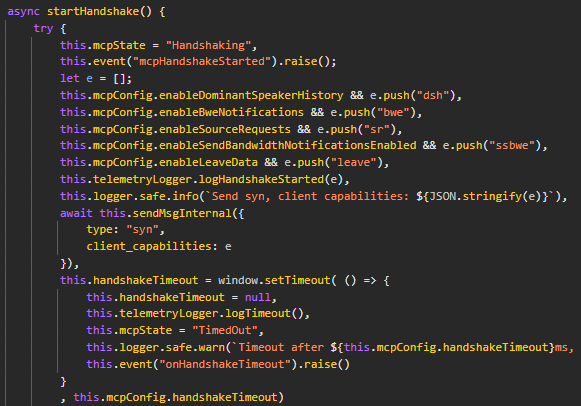
Concretely, this translates to the following JSON payload being sent over the data channel, by the client, and supposedly to a central controller, in a hub-and-spoke topology.
[{"type":"syn","client_capabilities":["dsh","bwe","sr","ssbwe"]}]However, it would be too simple if this payload was sent just like this. This led us to our second major finding. The client-side JavaScript code implements a custom protocol for encapsulating messages such as the one above. This protocol is supported by two functions: packetize and depacketize. As their names suggest, these are used to serialise and deserialise data sent and received over the data channel.
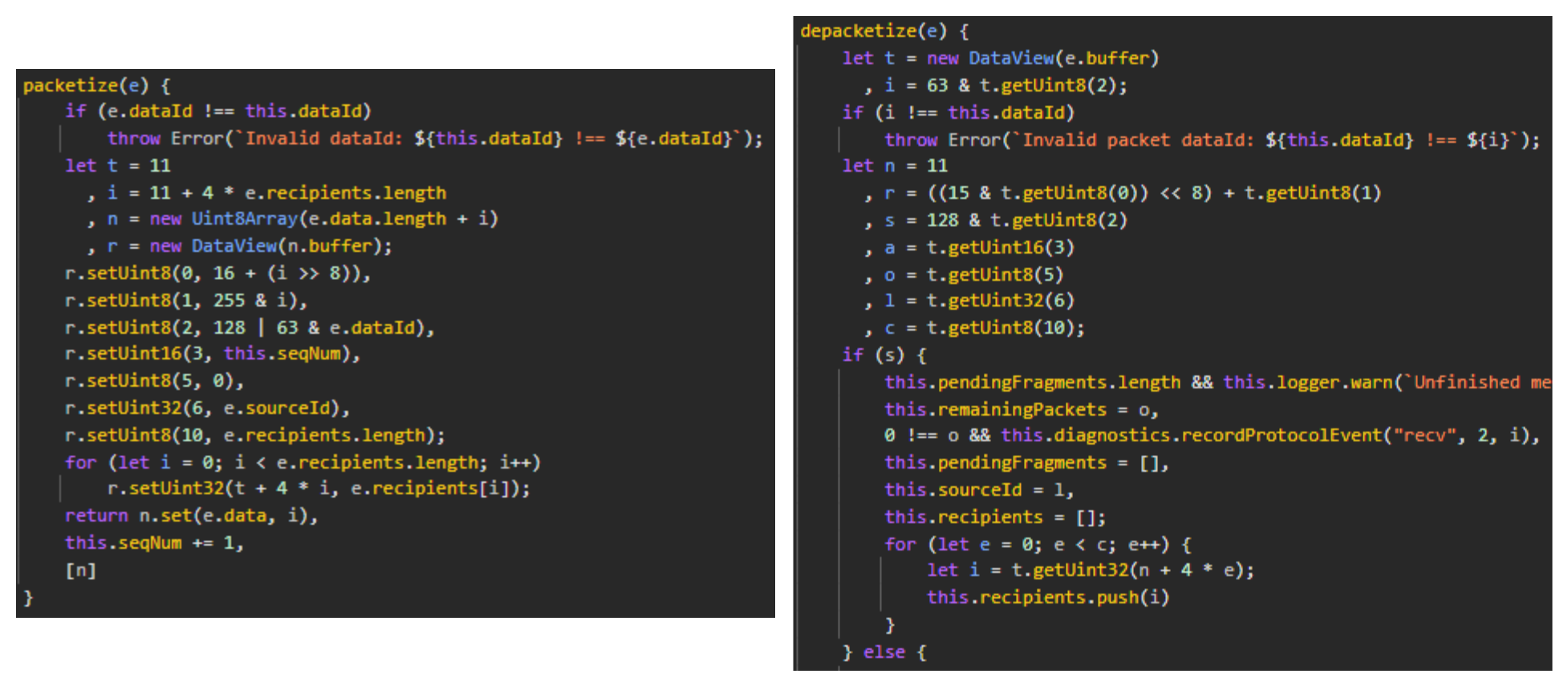
At first glance, the code looks intimidating, but the underlying packet structure used in these two functions is rather simple once you’ve taken the time to analyse it more closely.
Typically, a packet is composed of a header (first 11 bytes), a recipient list (variable length), and a payload. The header contains the following information:
-
PacketLength: the packet’s header size + the size of the recipient list. -
RemainingFlag(RF): it marks the beginning of a new message. -
DataId: the packet type (e.g.DATA_ID_CONTROL=2,DATA_ID_TRANSCRIPT=3, etc.). -
SequenceNumber: an incremental counter representing the order of a packet’s payload in a message. -
RemainingPackets: number of remaining packets in case of a fragmented message. -
SourceId: the ID of the peer who emitted the packet. -
RecipentsLength: the length of the array containing the recipient IDs.
After the header, you’ll find the recipient list, which is an array of unsigned 32-bit integers. In case of a fragmented message, this recipient list appears only in the first packet. The value of RemainingPackets tells the receiver how many packets it should expect next. When, this value gets to 0, it can reassemble the fragments to reconstruct the sender’s message.
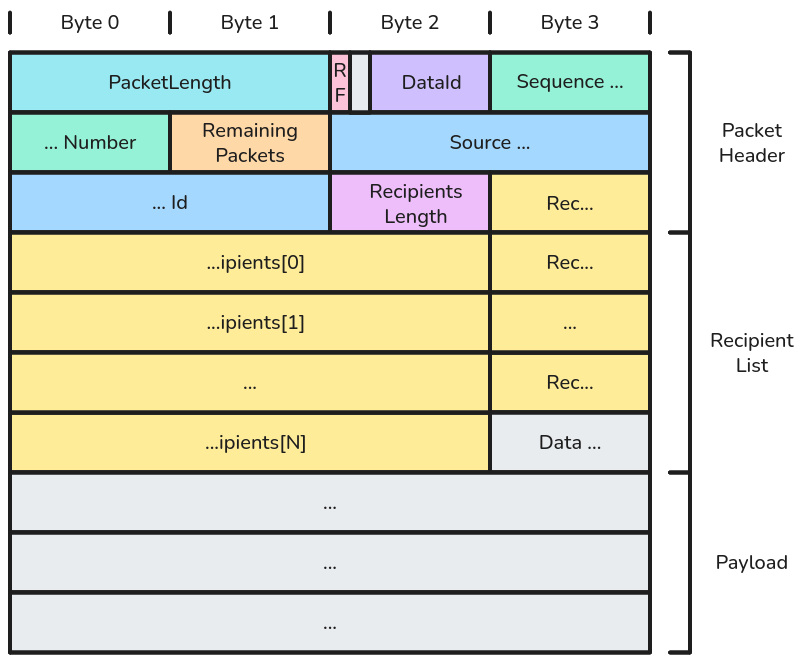
Armed with this knowledge, we were able to implement a functional Teams client that could send a handshake to the controller to first open its data channel, and then send arbitrary messages to another peer in a meeting. The next challenge was to figure out how to encapsulate our C2 traffic, so that those packets were routed from an agent to our C2 server, and back from our C2 server to the right agent.
Our idea was to create a custom proxy acting as a bridge between the C2 agents and the C2 server, so that we wouldn’t have to edit a single line of the server’s code. This proxy would be another peer in the Teams meeting, but its role would be to receive packets from all the other peers over its data channel and forward them to the server, and vice versa.
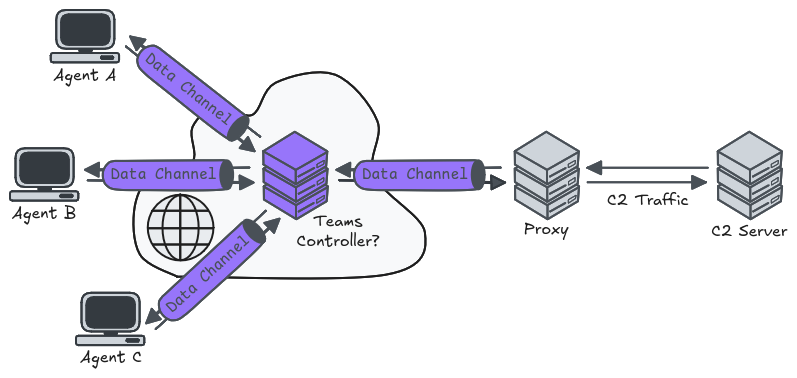
Routing the traffic properly between the agents and the proxy certainly was the most difficult part. It required a full rewrite after an initial rather sloppy implementation. Fortunately, we did not have to proxy raw TCP packets because we used an upper-layer protocol that was relatively easy to plug into our own encapsulation layer.
Conclusion
The solution we eventually came up with bypassed all the network restrictions and defences implemented by our client by blending in legitimate Teams communications. Nonetheless, this approach has a few limitations. First, we had to hardcode our meeting’s ID and passcode in our client. Second, speaking of the Teams meeting, a call is limited to 60 minutes when using a free account. This means that you have to account for that in the implementation and regularly restart the meeting and wait for the C2 agents to join again. It’s feasible but annoying. Third, the custom protocol implemented over the data channel does not allow for high throughput, and is susceptible to packet drops. This is totally fine in a Teams remote control session because you can afford to lose a few mouse pointer positions, but it is deadly when your upper-layer protocol expects the transport or session protocol to be 100% reliable. This last issue was addressed by encapsulating the traffic over KCP, but it felt like an unnecessary workaround, especially given the fact that data channels support ordering and retransmission.
This conclusion is also the right time to address the elephant in the room, at least for people who saw the BlackHat talk Ghost Calls: Abusing Web Conferencing for Covert Command & Control by Adam Crosser (@UNC1739), with Praetorian, in August 2025. In this talk, Adam explained how they initially used Zoom’s WebRTC infrastructure, and then Microsoft Teams’, to encapsulate C2 traffic. This talk was given a day after our first Proof-of-Concept was demonstrated to our client on their infrastructure. Until then, we thought we had an original idea. We had no clue this was already on BlackHat 2025 schedule. At the time, this felt like a huge setback, especially if you consider that they had done this research months (if not more) before us.
In hindsight, though, we did find a silver lining. After taking a look at their proof-of-concept, we came to the conclusion that it wouldn’t have worked in our case. Indeed, they leveraged the WebRTC infrastructure as an additional communication layer, meaning that they still had to exchange the SDP offers and answers through a primary C2 channel, to then allow WebRTC sessions to be established between peers. In our case, we had no way of establishing this primary communication channel in the first place, hence why we had to come up with this alternative.
Despite the different paradigms, there is an interesting compromise to find between the two solutions. On the one hand, our implementation was very versatile, but not reliable, or rather the cost to make it reliable was quite high. On the other hand, Adam’s implementation was dependent on an existing C2 channel, but was way more reliable and simpler because it eliminated pretty much all Microsoft dependencies. As a result, we could use our approach and join a meeting briefly, just to exchange SDP offers and answers through the chat, and then use Adam’s approach to properly establish WebRTC sessions with our proxy directly, instead of going through the Teams controller.
All in all, this was an intense but rewarding experience. It’s very rare to have the opportunity to conduct such full-scale R&D projects in the context of an assignment. So, we’ll simply conclude by thanking our customer for supporting us and trusting us with this project.